How to USE THE DASHBOARD
1
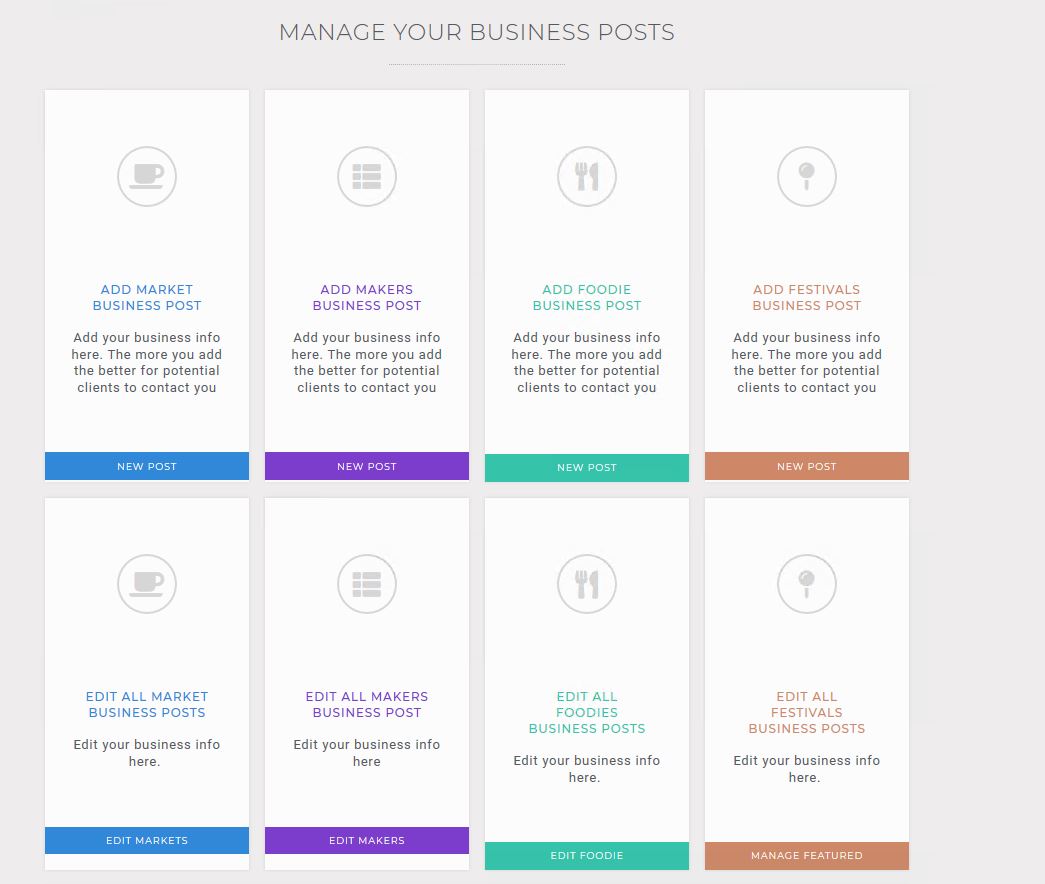
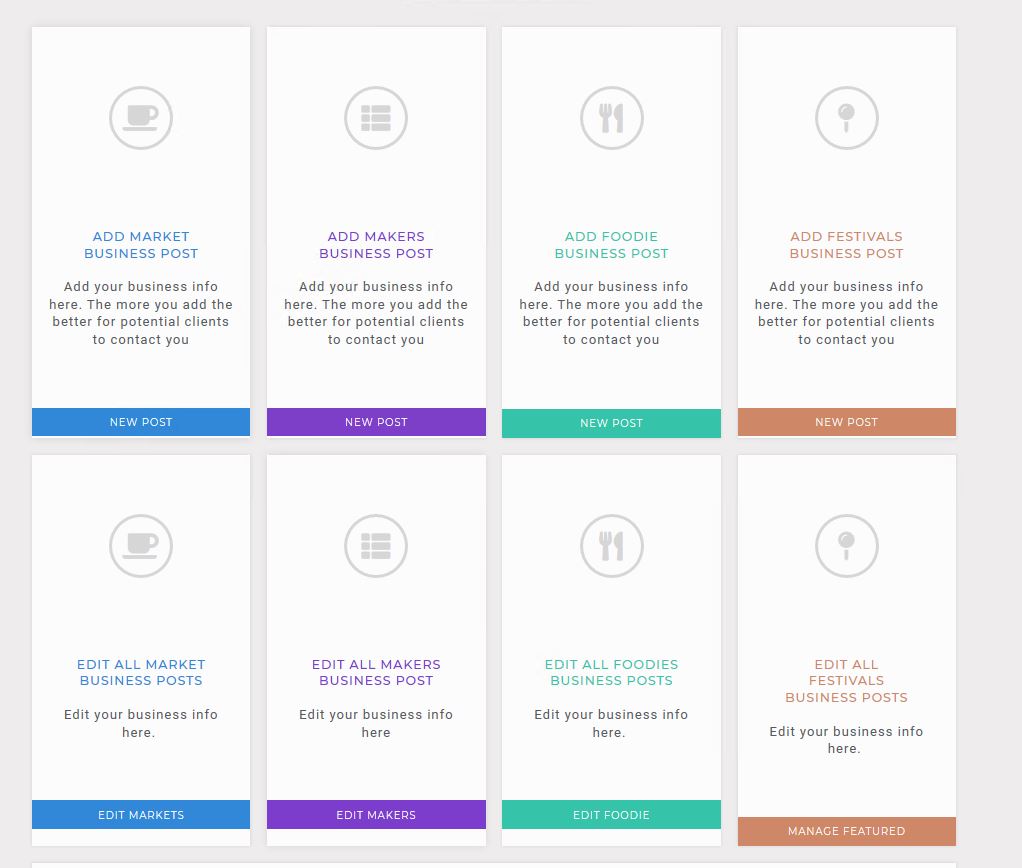
Once you login to the Dashboard you have the option to Create or Edit your Posts that you have created for your business. If it’s your first time you can begin by click the Add section for what ever you need.
2
Lets say you have chosen Add Market Business Post.
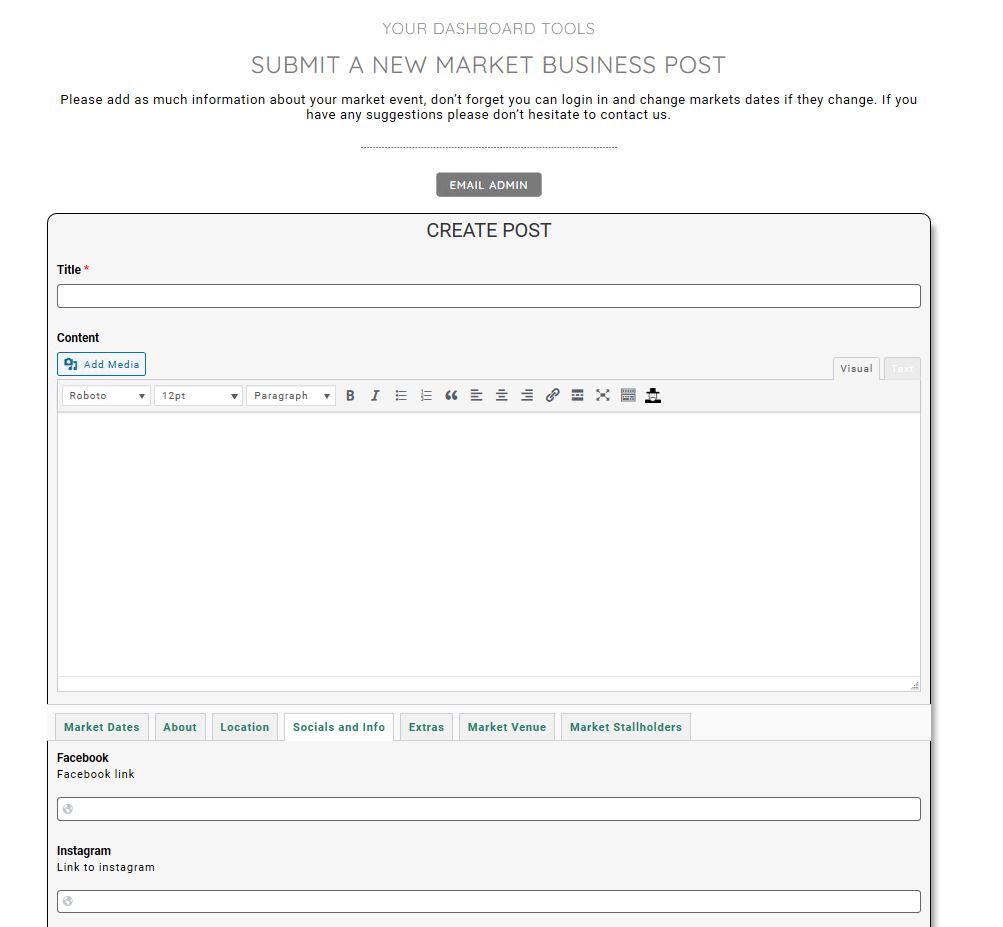
This will launch the Market Post form. Please fill out each category with as much info as you can. There are some fields that are mandatory which have a red astrix. If there are any mistakes the form will let you know with an error please have a read and fix the issue. Please Note that when styling your content and features add a Double space after your paragraphs, also if you want to add a youtube video follow the following instructions —>here
**dont sweat it if you need help just send me an email:
3
I have added lots of fields for your info, and I have added different tabs with descriptions, they can be hard to see make sure you click on them all and fill as much info as possible.
The Market Venue is created by us and the Market Stallholders can be added in the Add Foodies section of the Dashboard.
NOTE: if there are any fields you believe that should be added please let me know. This is for our industry and I have no issue improving and taking on good suggestions.

4
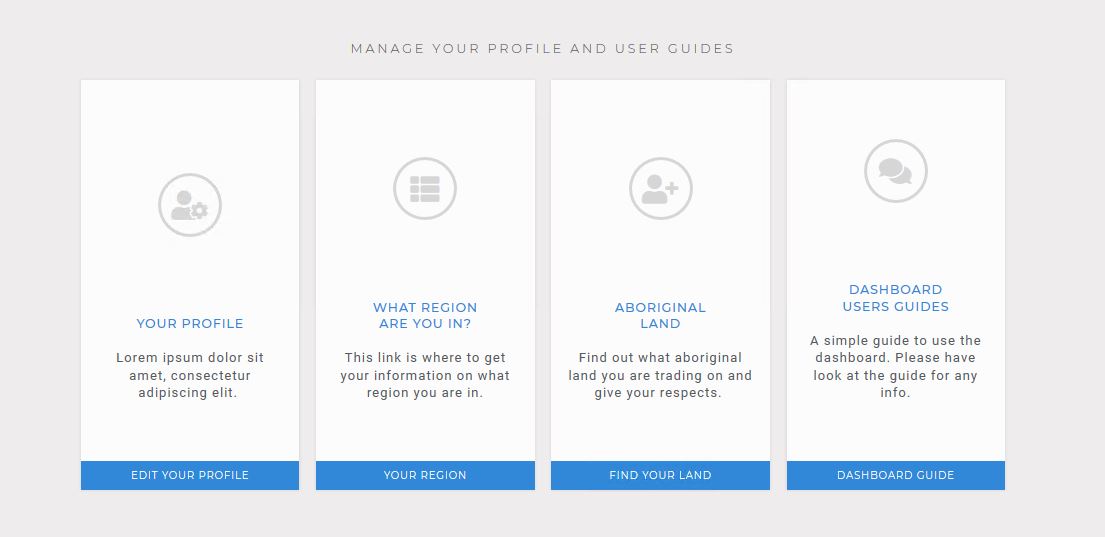
Alongside the Region shire, I have added links to where you can find this information if you don’t know. The links can be found at the bottom of the dashboard page.
Information for Aboriginal Acknowledgement is just a respect for the land we are making a living from.
5
Once all information has been entered please click on Submit Button
6 Edit your Posts
If your information has changed for a particular post, you can edit and change your information at any time. The post needs to be approved before you can edit it.
Each “ADD” section also has an “EDIT” underneath, so if you have multiple Posts you can edit as many as you need.
7 edit page
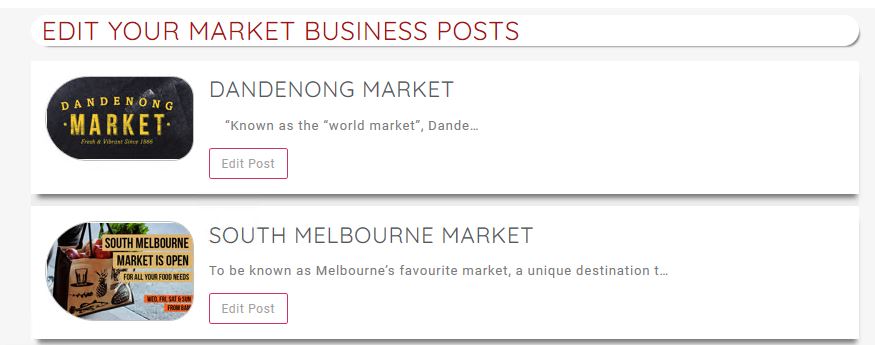
Once you click on your “EDIT” section (for example Markets), you are taken to the edit page and you can choose the market that needs to be edited by clicking Edit Post.
8 Update or delete
On the edit post section you can change your information or delete your post.